Labels help you bring structure to your keyword management and make it easier to coordinate work across your team.
Instead of working with a flat list of keywords, you can group them based on their current status or the actions they require. This allows you to quickly understand what needs attention and keep your workflow organized as your pages scale.
Once labels are assigned to keywords, they can also be used in the dashboard to compare the performance of Vpages accros different labels.
What labels are used for #
Labels allow you to tag keywords with meaningful statuses or categories, typically in a workflow context.
For example:
- pages that recently received a content update
- pages that require a review from a coworker
- pages used as test cases for FAQs
- pages that need broader product coverage
- managing priorities
- pages that need investigation due to declining performance
- pages assigned to a campaign
Because labels are flexible, you can adapt them to your own process. A keyword can have multiple labels, so a page can be both “needs optimization” and part of a campaign, or still under review.
How can you work with labels in the app?
Create a label #
Labels can be created from different places in the platform. The process is the same wherever labels can be assigned to keywords.
You can create a label from:
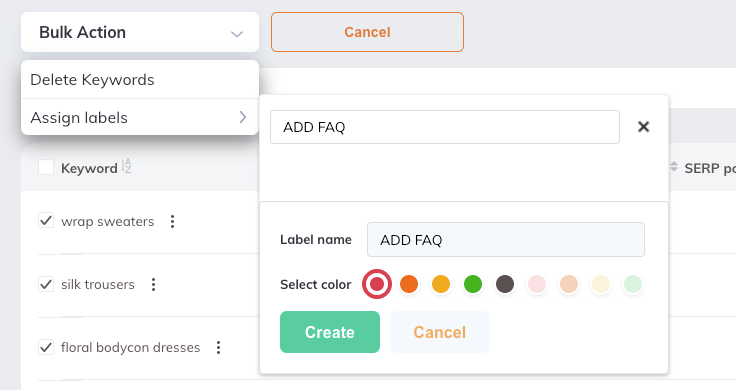
- the Keywords management page using bulk actions
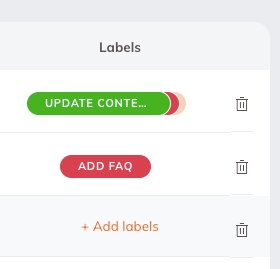
- the Keywords management table, via the labels column (Hover over the row)
- the keyword editor page (Settings tab)
Important
Label names are limited to a maximum of 25 characters.
Only alphanumeric characters and basic separators are allowed.
Steps #
- Open the labels window (via bulk actions, the labels column in the keyword table, or the keyword editor page)
- Type the name of the label in the search field
- Select Create label
- Choose a color for the label
- Confirm
The label will be created and immediately assigned to the selected keyword(s).
Important
Once a label is created, its name and color cannot be edited, and the label cannot be deleted.
Assign and remove labels #
Labels can be assigned to one or multiple keywords, depending on your workflow.
Assign labels in bulk #
- Go to the Keywords management page
- Select the keywords you want to label
- Click Assign label in the bulk actions dropdown
- Choose one or more labels
The selected labels will be applied to all chosen keywords.
Assign or remove labels for a single keyword #
- Go to the Keywords management page
- Locate the keyword you want to update
- Click the labels field in the keyword row
- Select or unselect one or more labels
Assign labels from the keyword editor page #
- Open the keyword editor page for the keyword you want to modify
- Go to the settings tab and find the labels section
- Add or remove labels as needed
Bulk management via import #
Labels can be managed at scale using the import and export functionality. This allows you to assign, update, or remove labels across a large number of keywords efficiently.
To do this, you can first export your keyword list, update the labels directly in the file, and then re-import it to apply the changes. This is especially useful when working with large keyword sets.
In the keyword list export (.csv or .xlsx) labels are stored in a dedicated column named labels. To assign labels to a keyword, simply enter the label name in this column. If you want to assign multiple labels to the same keyword, you must separate them using the | (pipe) character.
For example:
- SEO
- SEO|High priority
- Black Friday|Campaign|To review
When importing the file, the labels will be updated accordingly. To remove all labels from a keyword, you can leave the labels cell empty.
Important
Labels are case-insensitive, so variations such as SEO, seo, or Seo will be treated as the same label.
If a label does not already exist, it will be automatically created during import with a default color (red). To use a specific color, we recommend creating the label first in the UI and selecting the desired color. You can then reuse this label in your import file.