Hit enter to search or ESC to close
Close Search
Verbolia
Menu
  • Products
    • Vpage
      • Vpage logoProgrammatic platform for SEO, GEO, and SEACreate high-performance pages at scale for every way your customers search.
    • Vlink
      • Logo VlinkAutomated internal linkingImplement your linking strategy at scale on your e-commerce or classifieds website with our flexible internal linking solution.
    • Vrender
      • Vrender logoDynamic renderingMake every page discoverable by every bot. Vrender ensures your content is crawlable — whether by Googlebot, ChatGPT or PerplexityBot.
  • Pricing
  • Clients
  • Partners
  • Resources
    • –
      • BlogDiscover latest industry trends and insights
      • EbooksGain a competitive edge with our expert ebooks
    • –
      • Keyword cannibalization identifierFind highly similar keywords in a keyword list
      • Traffic opportunity toolDiscover our innovative method to drive website traffic
    • Product information
      • Product documentationFind answers to all your questions
      • Product updatesRead latest features enhancements
  • About Verbolia
    • About usWho is Verbolia?
    • CareersJoin our team!
  • Sign in
  • Request a demo
Verbolia

Vpage

19
  • Getting started
    • Statement of Work for Verbolia Setup and Onboarding
    • How to use Verbolia at its best!
  • Product feed
    • How to integrate your offer (products, ads,..) in the most convenient way into the Verbolia solution?
  • Reverse proxy routing
    • Reverse proxy fundamentals
    • How to setup the reverse proxy to use Vpages?
  • Internal linking configuration
    • Why and how to link the Verbolia pages to your existing web pages?
  • Vpages basics
    • How does Verbolia match products to keywords?
    • Using labels to organize your workflow
    • Setting up FAQ sections on your Vpages
    • How does Verbolia handle index/follow directives?
    • Integrating Verbolia Vpages into a native mobile App
    • How to ensure search engines index your Vpages
  • Theme management
    • Master instance
    • Advanced theme manager
    • Managing header and footer in your Verbolia theme
  • Dashboard
    • Managing GA4 authorization
    • Setting up GA4 tracking for Verbolia
    • Tracking Googlebot visits on Vpages
    • Analyzing performance with labels in the dashboard

Vmax

3
  • Getting started
    • Vmax – Integration Guide
    • Vmax – FAQ
  • Vanalytics
    • GTM Template Documentation for Vanalytics

Vlink

3
  • Vlink – Integration Guide
  • Vlink – Monitoring
  • Vlink – FAQ

Vrender

2
  • Vrender Integration Guide
  • Crawlers reference 
  • Home
  • Help Center
  • Vpage
  • Vpages basics
  • Using labels to organize your workflow
View Categories

Using labels to organize your workflow

Labels help you bring structure to your keyword management and make it easier to coordinate work across your team.

Instead of working with a flat list of keywords, you can group them based on their current status or the actions they require. This allows you to quickly understand what needs attention and keep your workflow organized as your pages scale.

Once labels are assigned to keywords, they can also be used in the dashboard to compare the performance of Vpages accros different labels.

What labels are used for #

Labels allow you to tag keywords with meaningful statuses or categories, typically in a workflow context.

For example:

  • pages that recently received a content update
  • pages that require a review from a coworker
  • pages used as test cases for FAQs
  • pages that need broader product coverage
  • managing priorities
  • pages that need investigation due to declining performance
  • pages assigned to a campaign

Because labels are flexible, you can adapt them to your own process. A keyword can have multiple labels, so a page can be both “needs optimization” and part of a campaign, or still under review.

How can you work with labels in the app?

Create a label #

Labels can be created from different places in the platform. The process is the same wherever labels can be assigned to keywords.

You can create a label from:

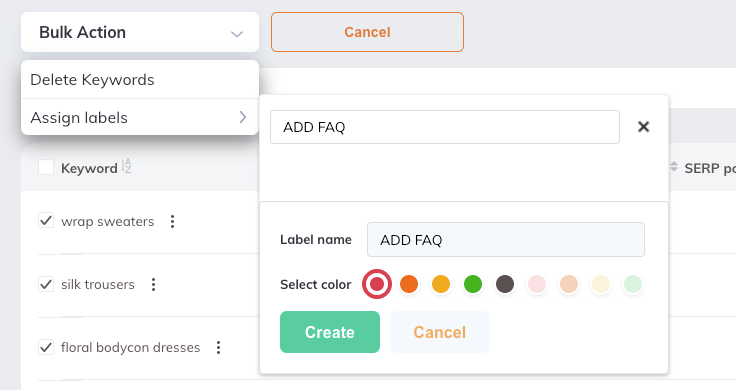
  • the Keywords management page using bulk actions
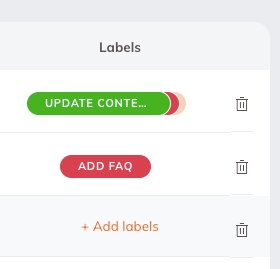
  • the Keywords management table, via the labels column (Hover over the row)
  • the keyword editor page (Settings tab)

Important
Label names are limited to a maximum of 25 characters.

Only alphanumeric characters and basic separators are allowed.

Steps #

  1. Open the labels window (via bulk actions, the labels column in the keyword table, or the keyword editor page)
  2. Type the name of the label in the search field
  3. Select Create label
  4. Choose a color for the label
  5. Confirm

The label will be created and immediately assigned to the selected keyword(s).

Important
Once a label is created, its name and color cannot be edited, and the label cannot be deleted.

Assign and remove labels #

Labels can be assigned to one or multiple keywords, depending on your workflow.

Assign labels in bulk #

  1. Go to the Keywords management page
  2. Select the keywords you want to label
  3. Click Assign label in the bulk actions dropdown
  4. Choose one or more labels

The selected labels will be applied to all chosen keywords.
Assign or remove labels for a single keyword #

  1. Go to the Keywords management page
  2. Locate the keyword you want to update
  3. Click the labels field in the keyword row
  4. Select or unselect one or more labels

Assign labels from the keyword editor page #

  1. Open the keyword editor page for the keyword you want to modify
  2. Go to the settings tab and find the labels section
  3. Add or remove labels as needed

Bulk management via import #

Labels can be managed at scale using the import and export functionality. This allows you to assign, update, or remove labels across a large number of keywords efficiently.

To do this, you can first export your keyword list, update the labels directly in the file, and then re-import it to apply the changes. This is especially useful when working with large keyword sets.

In the keyword list export (.csv or .xlsx) labels are stored in a dedicated column named labels. To assign labels to a keyword, simply enter the label name in this column. If you want to assign multiple labels to the same keyword, you must separate them using the | (pipe) character.

For example:

  • SEO
  • SEO|High priority
  • Black Friday|Campaign|To review

When importing the file, the labels will be updated accordingly. To remove all labels from a keyword, you can leave the labels cell empty.

Important
Labels are case-insensitive, so variations such as SEO, seo, or Seo will be treated as the same label.

If a label does not already exist, it will be automatically created during import with a default color (red). To use a specific color, we recommend creating the label first in the UI and selecting the desired color. You can then reuse this label in your import file.


Updated on May 7, 2026
Table of Contents
  • What labels are used for
  • Create a label
    • Steps
  • Assign and remove labels
    • Assign labels in bulk
    • Assign or remove labels for a single keyword
    • Assign labels from the keyword editor page
    • Bulk management via import

© 2026 Verbolia. All rights reserved.

Close Menu
  • Products
    • Vpage
      • Vpage logoProgrammatic platform for SEO, GEO, and SEACreate high-performance pages at scale for every way your customers search.
    • Vlink
      • Logo VlinkAutomated internal linkingImplement your linking strategy at scale on your e-commerce or classifieds website with our flexible internal linking solution.
    • Vrender
      • Vrender logoDynamic renderingMake every page discoverable by every bot. Vrender ensures your content is crawlable — whether by Googlebot, ChatGPT or PerplexityBot.
  • Pricing
  • Clients
  • Partners
  • Resources
    • –
      • BlogDiscover latest industry trends and insights
      • EbooksGain a competitive edge with our expert ebooks
    • –
      • Keyword cannibalization identifierFind highly similar keywords in a keyword list
      • Traffic opportunity toolDiscover our innovative method to drive website traffic
    • Product information
      • Product documentationFind answers to all your questions
      • Product updatesRead latest features enhancements
  • About Verbolia
    • About usWho is Verbolia?
    • CareersJoin our team!
  • Sign in
  • Request a demo