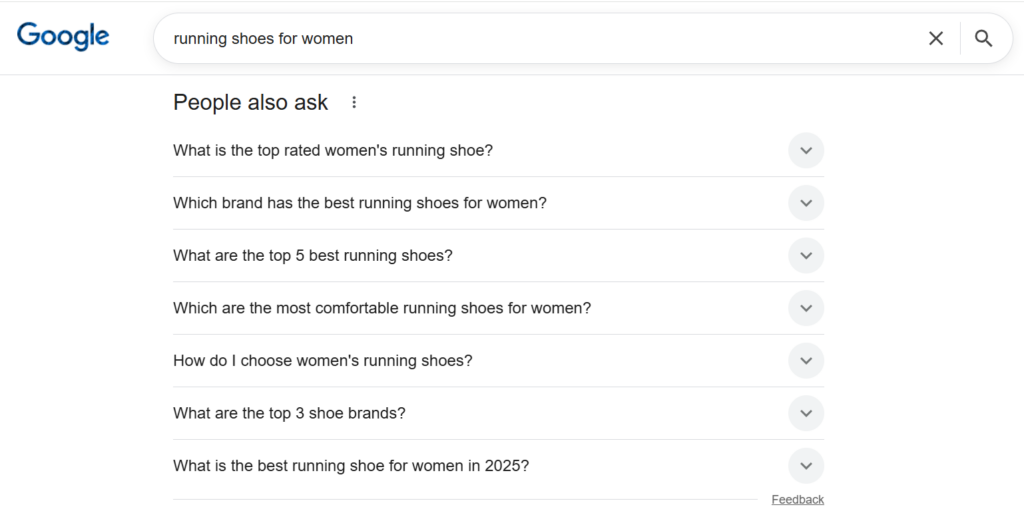
Adding Frequently Asked Question (FAQ) sections to your Vpages is a powerful way to improve visibility in search and AI engines while providing valuable, structured information to your shoppers.
This guide will walk you through how to create and manage FAQ sections manually for single Vpages directly in the Verbolia web application, or via our import/export functionality at scale for several Vpages at a time.
1. Creating FAQs for single Vpages in the app #
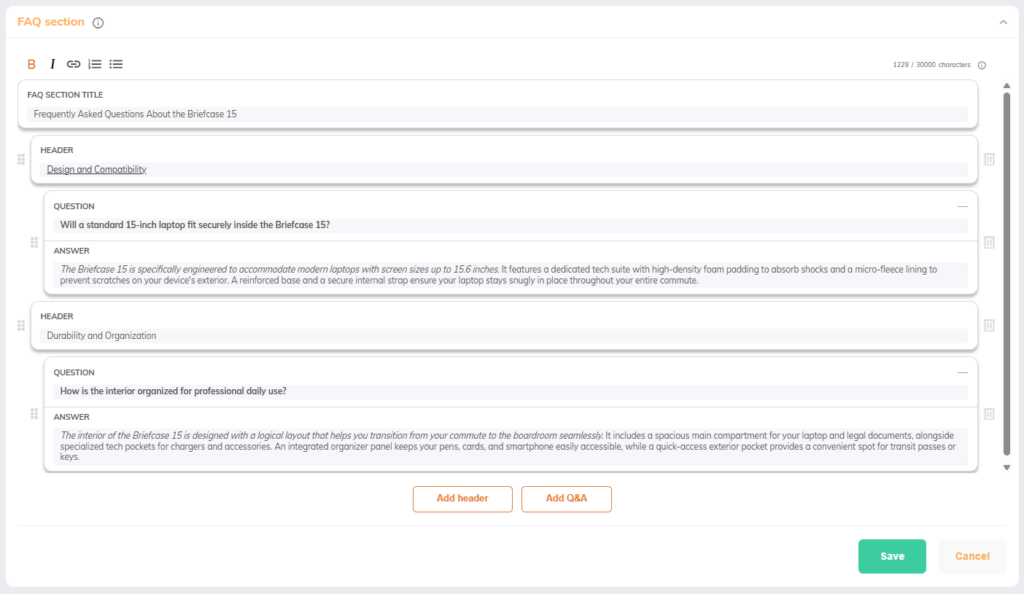
You can manually manage FAQs for individual keywords within the Keyword Editor.
How to add FAQs #
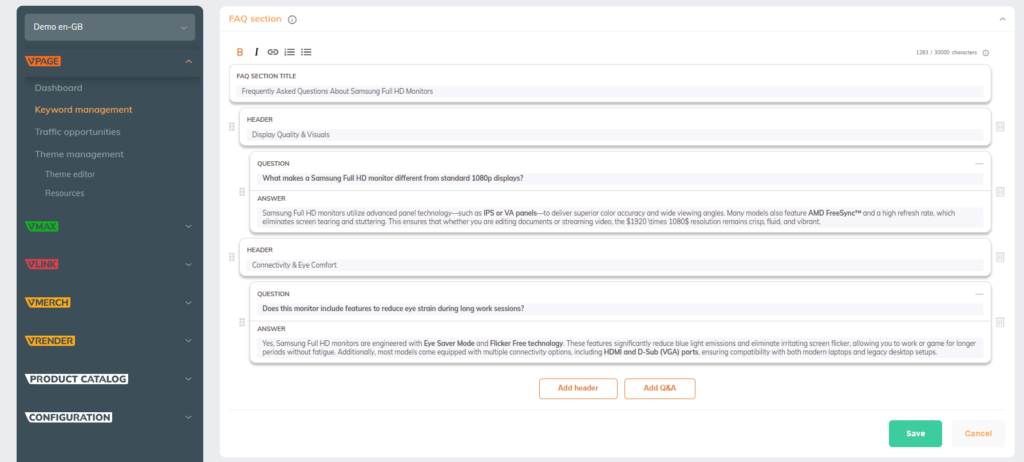
- Navigate to the Settings tab of your chosen keyword.
- Locate the FAQ section block under “Cold content”.
- Click Add content to expand the editor.
- You can add:
- FAQ Section Title: The main heading (e.g., “People Also Ask” or “Frequently Asked Questions”).
- Headers: Used to group related Q&A blocks under one overarching topic.
- Q&A Blocks: Individual question and answer pairs.
- You can style your content and link it:
- Bold: Make text bold to make sure it stands out.
- Italic: Make text italic.
- Lists: Add ordered and unordered lists to add structure to your text.
- Links: Add links to your text to add sources or links to related pages. Important: Make sure to include absolute URLs (i.e., URLs should include the entire path with “https://www.”).
- Click Save to publish your changes.
Important things to consider: #
- Clean pasting: If you copy content from external tools, Verbolia automatically cleans the text to keep only supported HTML styling, preventing system crashes.
- Rules and limits: There are character count, FAQ section element count, and styling limitations to consider. Please read the dedicated section on Rules & Limits below for more information.
Preview your changes: #
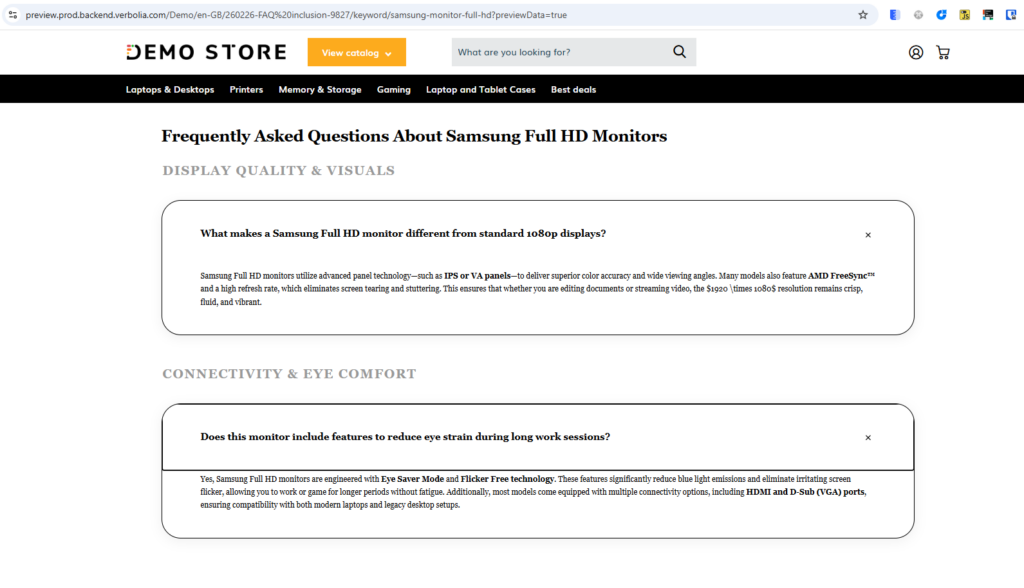
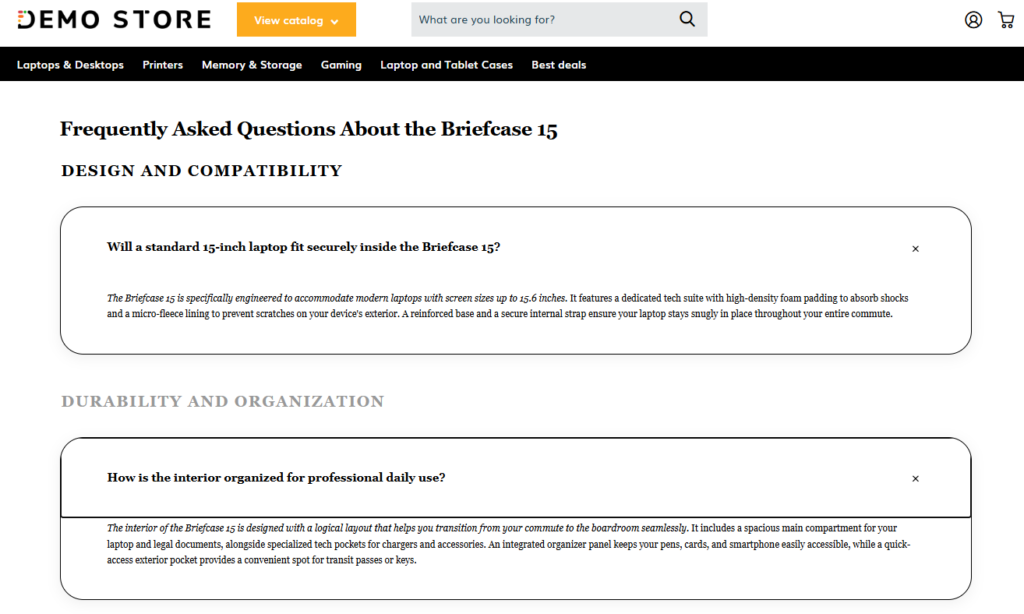
To see the changes you have made, you can use the Preview button at the top of the screen to see how the FAQs you’ve included will look on your Vpage.

Notes:
- Please remember that the Page Generator process must run to refresh your pages before the changes will appear in the FAQ section of your live Vpages.
- For information: Vpage’s system automatically generates schema markup (FAQPage type), so you don’t need to worry about this step.
2. FAQ Management at scale via import / export #
To manage FAQs across thousands of keywords, use the FAQSection column in your Keyword List (XLSX or CSV). You can do this by navigating to the Keyword Management screen and exporting your current Keyword List.
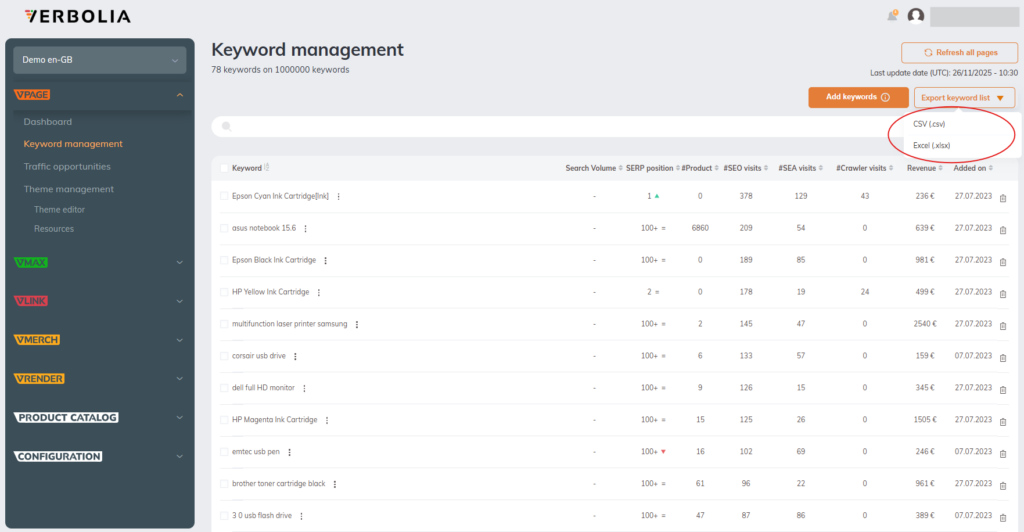
In the FAQSection column (if using Excel) or field (for CSV), you must include your FAQ content in the format shown below.
Required format #
To ensure a successful import, you must use a specific format so the system can correctly identify and style each element according to your preferences. This format utilizes a combination of naming conventions to define the FAQ sections and HTML tags for styling.
vfaq-title:<p>TEXT</p>
vfaq-header:<p>TEXT</p>
vfaq-question:<p>TEXT</p> vfaq-answer:<p>TEXT</p>
vfaq-header:<p>TEXT</p>
vfaq-question:<p>TEXT</p> vfaq-answer:<p>TEXT</p>
Format and styling explanation #
| FAQ element | Import / export format name or tag | Explanation |
| FAQ section title | vfaq-title: | The main title of the FAQ section (e.g., “Frequently Asked Questions”). This element is optional; it can be omitted or left empty. |
| Header | vfaq-header: | Used to group one or several Q&A blocks under an overarching topic. This element is optional; it can be omitted or left empty. |
| Question & Answer | vfaq-question: AND vfaq-answer: | The containers for a question and its corresponding answer. These are mandatory to create an FAQ section. To import successfully, both fields must be populated with text. To ensure the system recognizes that a vfaq-question: and a vfaq-answer: correspond to each other, they must be placed immediately after one another, separated by a space or kept on the same line. |
| Paragraph (not visible in keyword editor) | <p></p> | Used to wrap individual FAQ elements. While these are automatically included in exports, they are optional for imports; the system will generate them automatically upon saving to the database. |
| Bold | <strong></strong> OR <b></b> | Both HTML tags are accepted to apply bold styling to text. |
| Italic | <em></em> OR <i></i> | Both HTML tags are accepted to apply italic styling to text. |
| Ordered list (numbered) | <ol><li></li></ol> | Use <ol></ol> for numbered lists. Each list item must be wrapped in <li></li> tags. Note: List tags cannot be nested inside paragraph (<p></p>) tags. |
| Unordered list (bullet points) | <ul><li></li></ul> | Use <ul></ul> for bullet point lists. Each item must be wrapped in <li></li> tags. Note: List tags cannot be nested inside paragraph (<p></p>) tags. |
| Links | <a href=””></a> OR <a href=”” target=”_blank”></a> | Use the <a></a> tag to add hyperlinks. To open a link in a new tab, include the target=”_blank” attribute. Note: Always use absolute URLs (e.g., https://www.test.com). |
| Line break | <br> | Add line breaks to your text by using the <br> HTML tag. |
| Division (not visible in the Keyword Editor) | <div></div> | Each FAQ section element (e.g., the header) has an underlying <div> tag in the background. This HTML tag does not need to be included during an import and is not included in Keyword List during exports. |
Format examples #
Example 1:
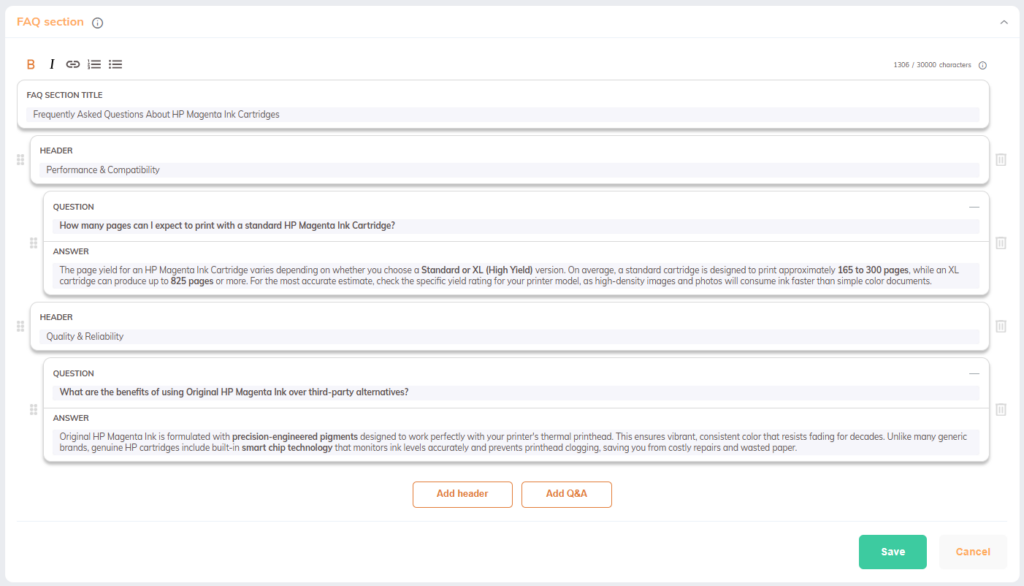
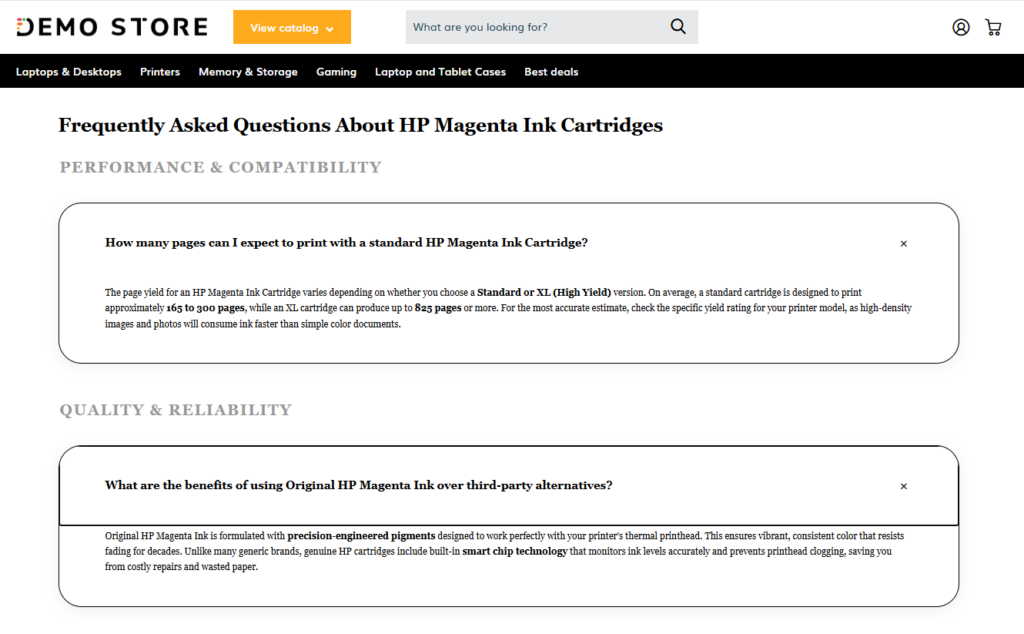
vfaq-title:<p>Frequently Asked Questions About HP Magenta Ink Cartridges</p>
vfaq-header:<p>Performance & Compatibility</p>
vfaq-question:<p><b>How many pages can I expect to print with a standard HP Magenta Ink Cartridge?</b></p> vfaq-answer:<p>The page yield for an HP Magenta Ink Cartridge varies depending on whether you choose a <strong>Standard or XL (High Yield)</strong> version. On average, a standard cartridge is designed to print approximately <strong>165 to 300 pages</strong>, while an XL cartridge can produce up to <strong>825 pages</strong> or more. For the most accurate estimate, check the specific yield rating for your printer model, as high-density images and photos will consume ink faster than simple color documents.</p>
vfaq-header:<p>Quality & Reliability</p>
vfaq-question:<p><strong>What are the benefits of using Original HP Magenta Ink over third-party alternatives?</strong></p> vfaq-answer:<p>Original HP Magenta Ink is formulated with <strong>precision-engineered pigments</strong> designed to work perfectly with your printer's thermal printhead. This ensures vibrant, consistent color that resists fading for decades. Unlike many generic brands, genuine HP cartridges include built-in <strong>smart chip technology</strong> that monitors ink levels accurately and prevents printhead clogging, saving you from costly repairs and wasted paper.</p>
Example 2:
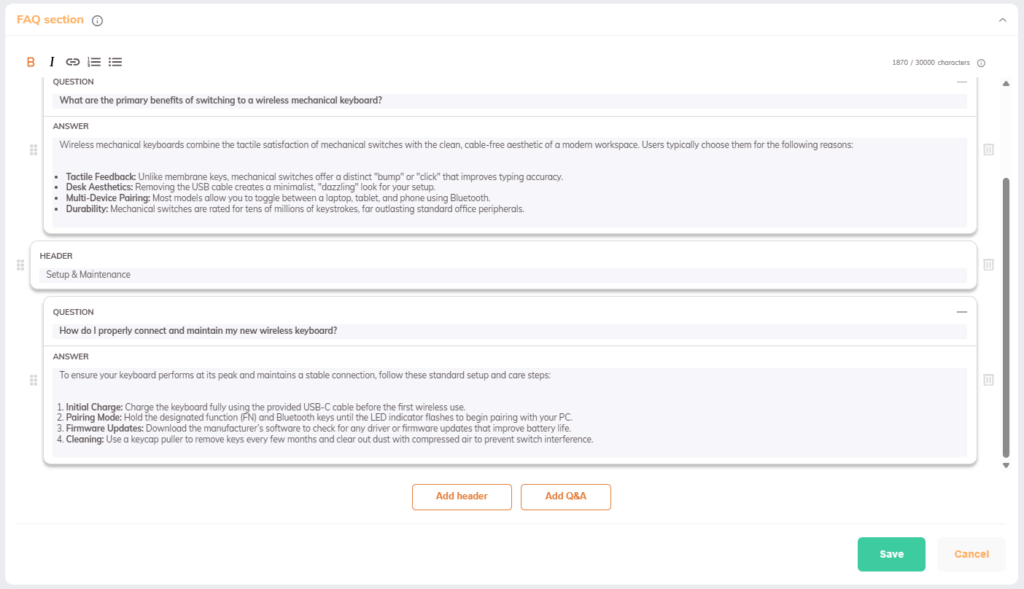
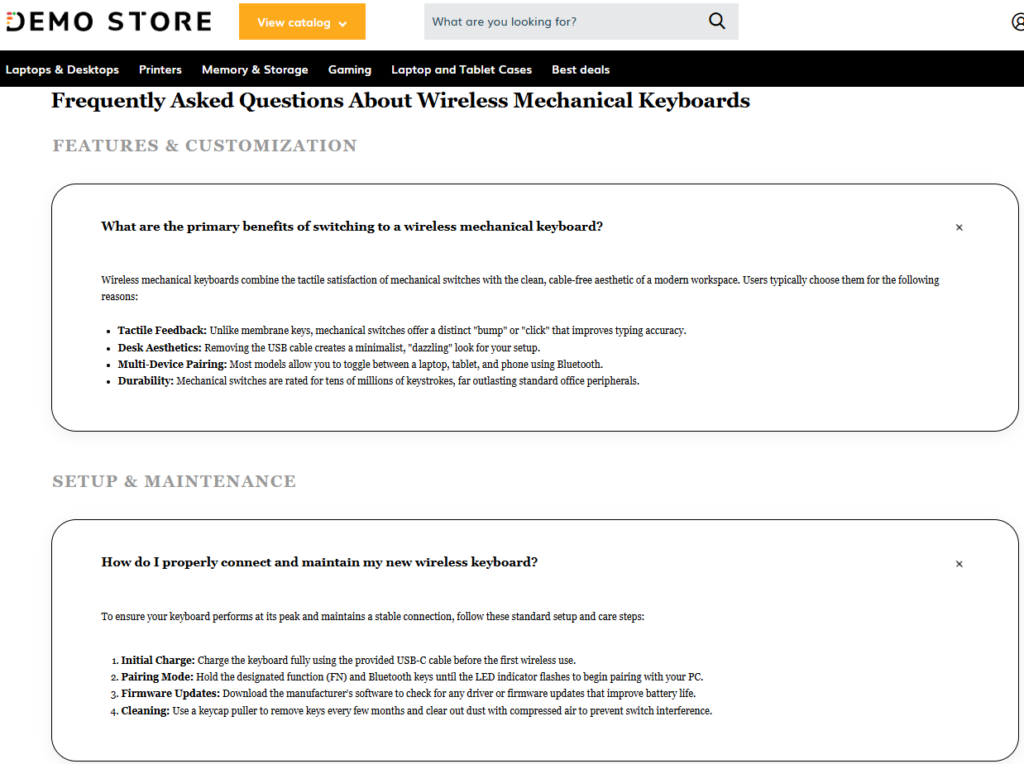
vfaq-title:<p>Frequently Asked Questions About Wireless Mechanical Keyboards</p>
vfaq-header:<p>Features & Customization</p>
vfaq-question:<p><strong>What are the primary benefits of switching to a wireless mechanical keyboard?</strong></p> vfaq-answer:<p>Wireless mechanical keyboards combine the tactile satisfaction of mechanical switches with the clean, cable-free aesthetic of a modern workspace. Users typically choose them for the following reasons:</p><p><br></p><ul><li><strong>Tactile Feedback:</strong> Unlike membrane keys, mechanical switches offer a distinct "bump" or "click" that improves typing accuracy.</li><li><strong>Desk Aesthetics:</strong> Removing the USB cable creates a minimalist, "dazzling" look for your setup.</li><li><strong>Multi-Device Pairing:</strong> Most models allow you to toggle between a laptop, tablet, and phone using Bluetooth.</li><li><strong>Durability:</strong> Mechanical switches are rated for tens of millions of keystrokes, far outlasting standard office peripherals.</li></ul>
vfaq-header:<p>Setup & Maintenance</p>
vfaq-question:<p><strong>How do I properly connect and maintain my new wireless keyboard?</strong></p> vfaq-answer:<p>To ensure your keyboard performs at its peak and maintains a stable connection, follow these standard setup and care steps:</p><p><br></p> <ol><li><strong>Initial Charge:</strong> Charge the keyboard fully using the provided USB-C cable before the first wireless use.</li><li><strong>Pairing Mode:</strong> Hold the designated function (FN) and Bluetooth keys until the LED indicator flashes to begin pairing with your PC.</li><li><strong>Firmware Updates:</strong> Download the manufacturer’s software to check for any driver or firmware updates that improve battery life.</li><li><strong>Cleaning:</strong> Use a keycap puller to remove keys every few months and clear out dust with compressed air to prevent switch interference.</li></ol>
* As you can see in the example above, the list tags are not nested within a paragraph tag <p></p>.
Example 3:
vfaq-title:<p>Frequently Asked Questions About the Briefcase 15</p>
vfaq-header:<p><a href="https://www.verbolia.com/" target="_blank">Design and Compatibility</a></p>
vfaq-question:<p><strong>Will a standard 15-inch laptop fit securely inside the Briefcase 15?</strong></p> vfaq-answer:<p><em>The Briefcase 15 is specifically engineered to accommodate modern laptops with screen sizes up to 15.6 inches.</em> It features a dedicated tech suite with high-density foam padding to absorb shocks and a micro-fleece lining to prevent scratches on your device's exterior. A reinforced base and a secure internal strap ensure your laptop stays snugly in place throughout your entire commute.</p>
vfaq-header:<p>Durability and Organization</p>
vfaq-question:<p><strong>How is the interior organized for professional daily use?</strong></p> vfaq-answer:<p><i>The interior of the Briefcase 15 is designed with a logical layout that helps you transition from your commute to the boardroom seamlessly.</i> It includes a spacious main compartment for your laptop and legal documents, alongside specialized tech pockets for chargers and accessories. An integrated organizer panel keeps your pens, cards, and smartphone easily accessible, while a quick-access exterior pocket provides a convenient spot for transit passes or keys.</p>
3. Rules & limits #
To ensure optimal functioning, the following rules and limits are enforced for both the import/export functionality and for manually adding FAQs in the Keyword Editor:
| Rules / Limits | Description |
| Character count limit | The maximum limit for a Vpage’s FAQ section is 30,000 characters. Note: All underlying HTML tags are counted toward this total. |
| FAQ section element quantity limits | FAQ section title (vfaq-title): Maximum 1 can exist. Header (vfaq-header): Maximum 20 can be created. Q&A blocks (vfaq-question & vfaq-answer): Maximum 20 can be created. |
| Q&A pairing | Every question (vfaq-question) must have a corresponding answer (vfaq-answer). |
| HTML tags and styling limits | Only the following HTML tags are supported: Bold: <b></b> or <strong></strong> Italic: <i></i> or <em></em> Lists: <ul><li></li></ul> or <ol><li></li></ol> Links: <a href=””></a> ( including the target=”_blank” attribute) → URLs should be absolute Paragraphs & Dividers: <p></p>, <div></div>, or <br> Important: No other styling or inline CSS is supported. Automatic Sanitization Keyword editor: If content containing unsupported HTML or inline CSS is pasted into the editor, the unsupported elements will be stripped out automatically. Import / export: If unsupported HTML tags or CSS are included via a file import, they will be ignored, and only the supported tags will be retained. |
| HTML syntax & structure | HTML syntax and structure needs to be respected for a successful import. That means that there must always be opening and closing html tags. Furthermore, html tags must be well-written e.g., you may not write <b><?b> instead of <b></b>. Moreover, the HTML structure must be respected. For example list html tags like <ol> may not be nested within paragraph tags <p>. |
4. Pro-tips for success #
- Use AI to generate your FAQs: For example, you can use Gemini for Google Sheets to generate FAQs in the required format, tailored to your website’s language and each Vpage’s target keyword.
- Get Q&A inspiration from Google’s “People Also Ask” section: Manually check the questions that Google includes in the People Also Ask snippets for your keywords, or use tools like Semrush to gather these insights at scale.