---
title: Vmax – Integration Guide
description: "#### Introduction Vmax is a technology designed to transform eCommerce product detail pages into high-converting landing pages by testing different layouts and optimizing them for visitor engagement. Unlike classic A/B testing tools, Vmax allows to - inject in your existing…"
url: "https://www.verbolia.com/knowledge/vmax-integration-guide-2/"
updated: "2025-04-07"
---
# Vmax – Integration Guide
#### Introduction
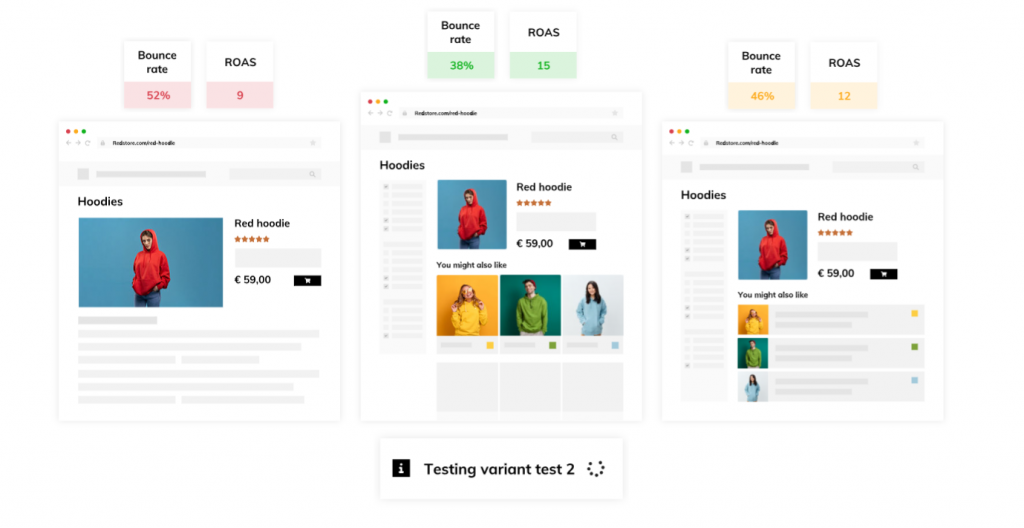
Vmax is a technology designed to transform eCommerce product detail pages into high-converting landing pages by testing different layouts and optimizing them for visitor engagement. Unlike classic A/B testing tools, Vmax allows to
- inject in your existing pages information coming from a data feed
- apply a different page transformation on each product individually
More info [here](https://www.verbolia.com/vmax/).
#### How does Vmax work?
Vmax requires:
- an access to a product feed
- the installation of a Javascript script in the product pages
- configuration in Vmax backoffice: define activation rules and create page transformers
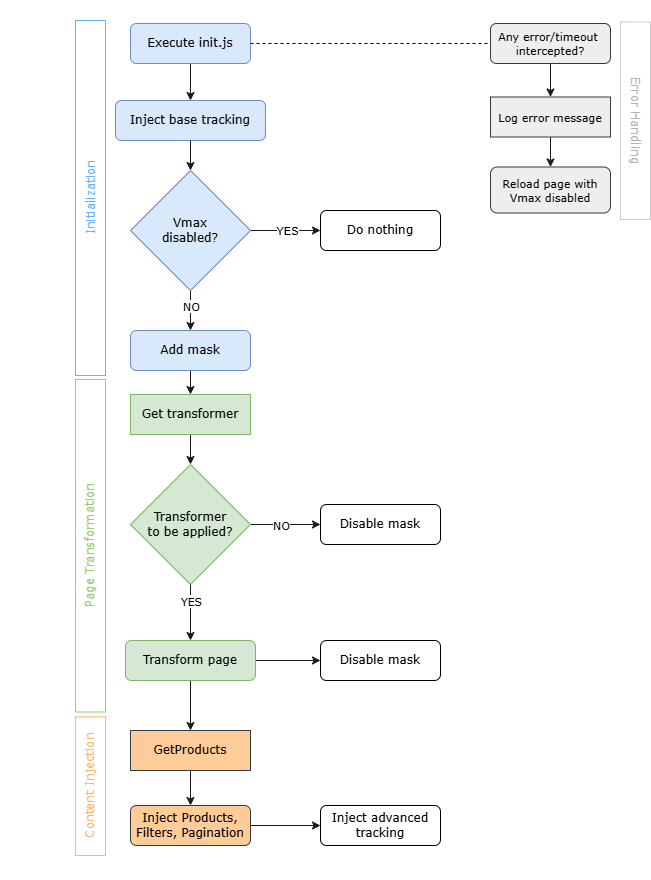
Here is how the script works
1. Initialization: The script begins by retrieving the parameters (activation percentage, rules and tracking) via an API and adds a mask on the page to prevent flickering (the mask will be removed after page transformation). A tracking is also set up at this stage in order to measure activity in the page.
2. Page Transformation: script then downloads the transformer to be applied (if applicable) and renders the page.
3. Content Integration: If extra content needs to be injected (like products, or content changes), the script fetches the Vmax content and displays it into the page.
#### Configure Vmax in Verbolia Backoffice application
We're here to assist you every step of the way! Should you encounter any challenges configuring Vmax, don't hesitate to reach out to our dedicated Customer Success Team for support.
1. Import your product catalog feed:
Access *Feed Settings* to customize how Verbolia retrieves your product feed.
Deltailed instructions can be found [here](https://www.verbolia.com/knowledge/data-feed-integration/).
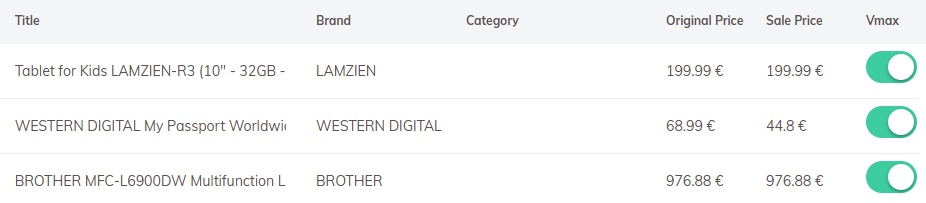
2. Select Vmax enabled products:
Navigate to the Vmax section within *Product Selection* to manually or bulk-select products eligible for Vmax.
3. Configure Vmax settings:
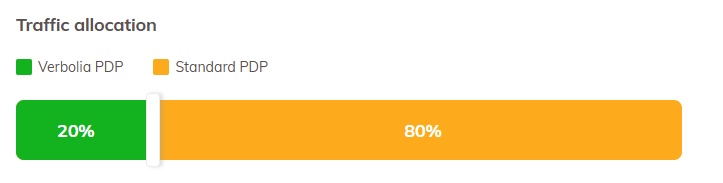
Within *Settings*, determine the *Traffic Allocation*, specifying the percentage of Vmax-enabled pages where Vmax content will be displayed.
Optionally, customize *Trigger Conditions* rules as needed.

4. Edit layout:
In the Vmax section, you'll find a *Transformers*link dedicated to advanced layout modifications.
Exercise caution when making modifications here to avoid inadvertently affecting functionalities.
#### Integrate Vmax script into your pages
1. Connect to the Verbolia Backoffice application and navigate to Vmax section.
2. In *Settings*copy the script to your clipboard.
3. Insert the script into the tag of your webpage. For optimal performance, ensure the Vmax script is placed within the tag of your HTML. **Position it as high up as possible**, typically following the tag, charset declarations, and any other necessary meta tags. Prioritize placing the Vmax script before analytics or heatmapping platform codes.
Here is what the Vmax script might look like on a page:
```
```