---
title: Setting up GA4 tracking for Verbolia
description: "**This guide offers a comprehensive walkthrough on establishing a seamless integration between Verbolia and your GA4. By following these steps, you'll gain a deeper insight into your visitors' behavior and the efficacy of your landing pages.** ##### **Short summary** 1.…"
url: "https://www.verbolia.com/knowledge/ga4-tracking-for-verbolia/"
updated: "2024-05-17"
category: Vpage / Dashboard
---
# Setting up GA4 tracking for Verbolia
**This guide offers a comprehensive walkthrough on establishing a seamless integration between Verbolia and your GA4. By following these steps, you'll gain a deeper insight into your visitors' behavior and the efficacy of your landing pages.**
##### **Short summary**
1. Add GA4 script to Verbolia pages → done by Verbolia
2. Create technical cookie when visitor lands on Verbolia page → done by Verbolia
3. Adapt purchase event → to be done by Customer
a. Read ‘v_landing’ cookie value
b. Add parameter ‘v_landing’ to purchase event
4. Create custom definition in GA4 → to be done by Customer or Verbolia (admin)
5. Login to the correct GA4 property in the Verbolia App → to be done by Customer
6. Create reporting in GA4 → to be done by Customer or Verbolia (admin)
#### **1. GA4 script on Verbolia pages**
Adding the GA4 Analytics tag to the Verbolia pages, can be done by:
- Adding the GTM-tag to the pages, if it’s fired via the GTM-container.
- Adding the G-tag in the Settings screen in the Verbolia App.
- Adding another tag manager script directly in the html via the Verbolia Theme Editor
`
`
#### **2. Technical cookie creation**
First we need to make sure that a cookie is created when we detect a landing on a Verbolia page. If the referrer is different from your domain, then we consider this to be a landing. In that case we create a cookie named “v_landing” containing the url of the Verbolia landing page.
Default validity is 7 days.
This is done automatically on the Verbolia pages.
#### 3. Integration of Parameter in the Purchase Event
In order to track revenue properly, the parameter “v_landing” needs to be added to every
purchase event. The value of that parameter must be read from the “v_landing” cookie, if it
exists.
There are several ways to do this, it will depend on how you are currently triggering the
purchase event in GA4.
**Implementation in Google Tag Manager**
To implement this in GTM, here are the steps:
- Create a variable to read the cookie
In GTM, go to Variables, scroll down to User Defined Variables and click on New.
Choose variable type: “1st-Party cookie” and choose the cookie name “v_landing”, then
Save:
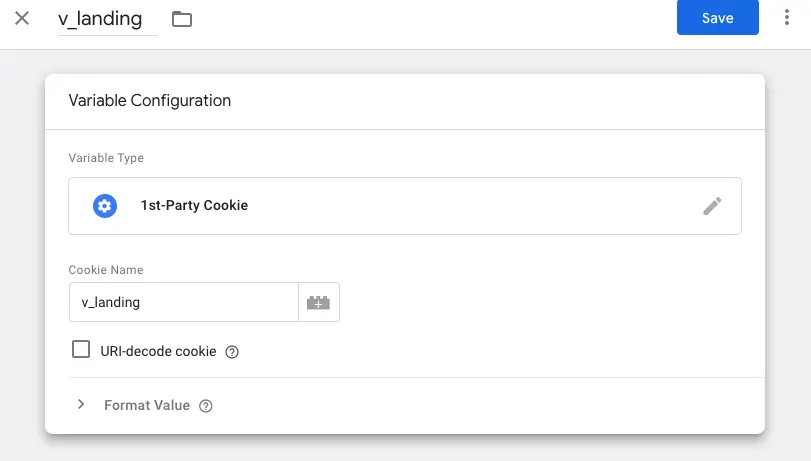
*Note: you might want to populate the value from your code into the datalayer, instead of letting GTM read the cookie. If that is the case, you should choose a variable type “Data Layer Variable”, and define a datalayer variable name that you will set in the datalayer from your code before triggering the purchase event.*
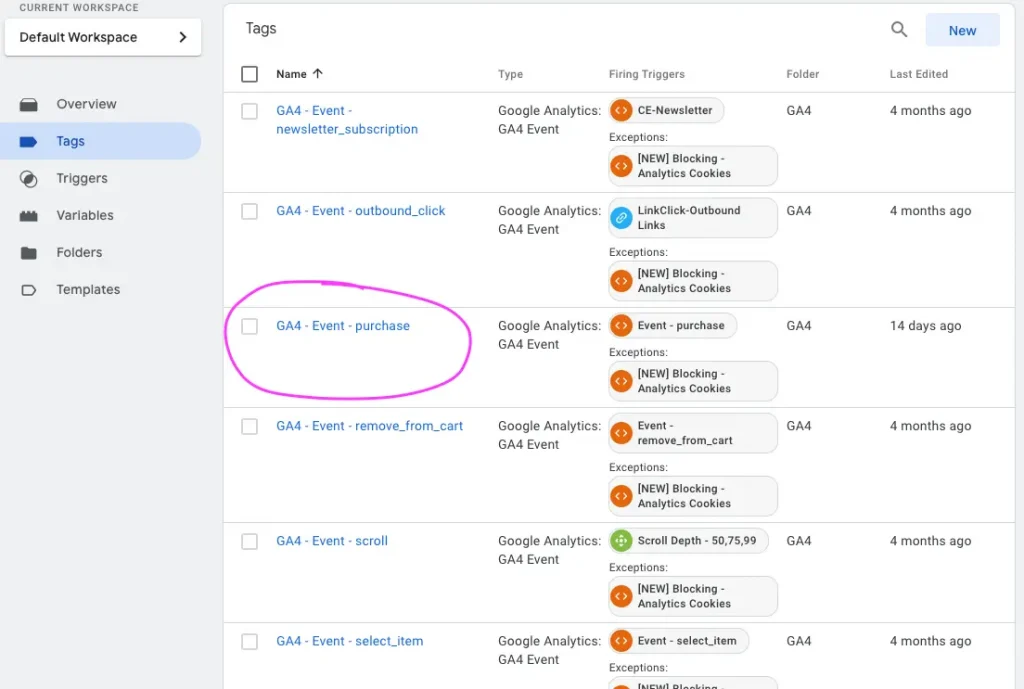
- Modify the Purchase tag to include the parameter
In GTM, go to Tags, and select the GA4 Purchase Event, example:
In the Event Parameter section, Add a Row, where you define the Parameter Name as “v_landing”. For the value, you can browse the existing variables and select “v_landing”, or directly type :
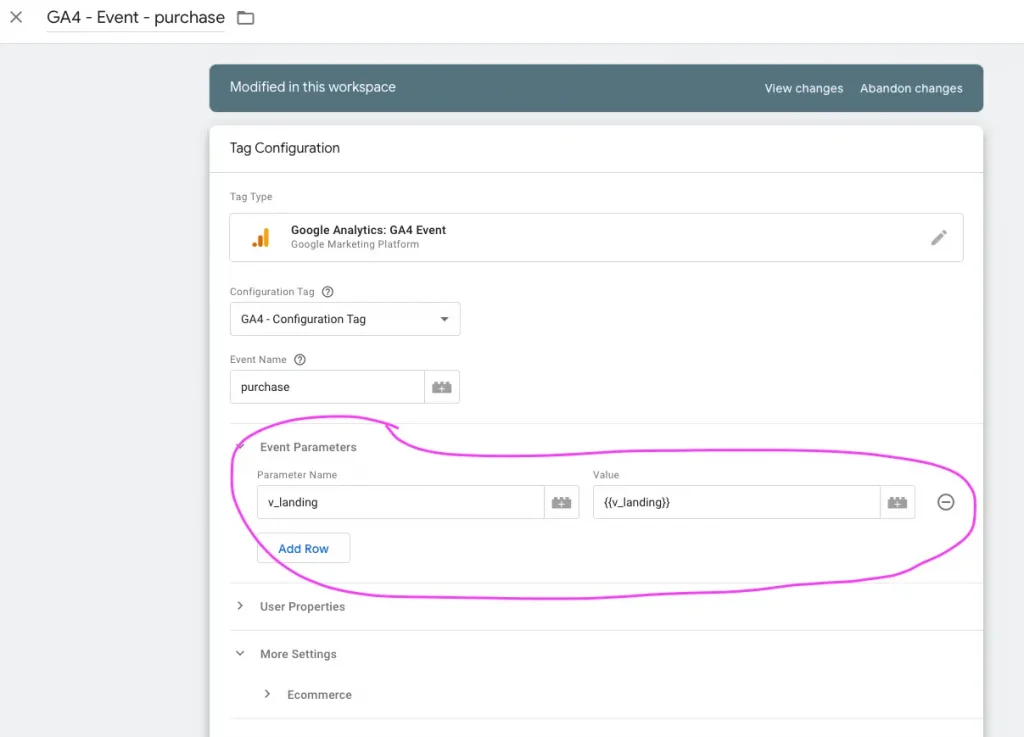
It is important to do this for all GA4 Purchase events the same way.
After adding the variable and the Event Parameter, do not forget to Publish the changes:
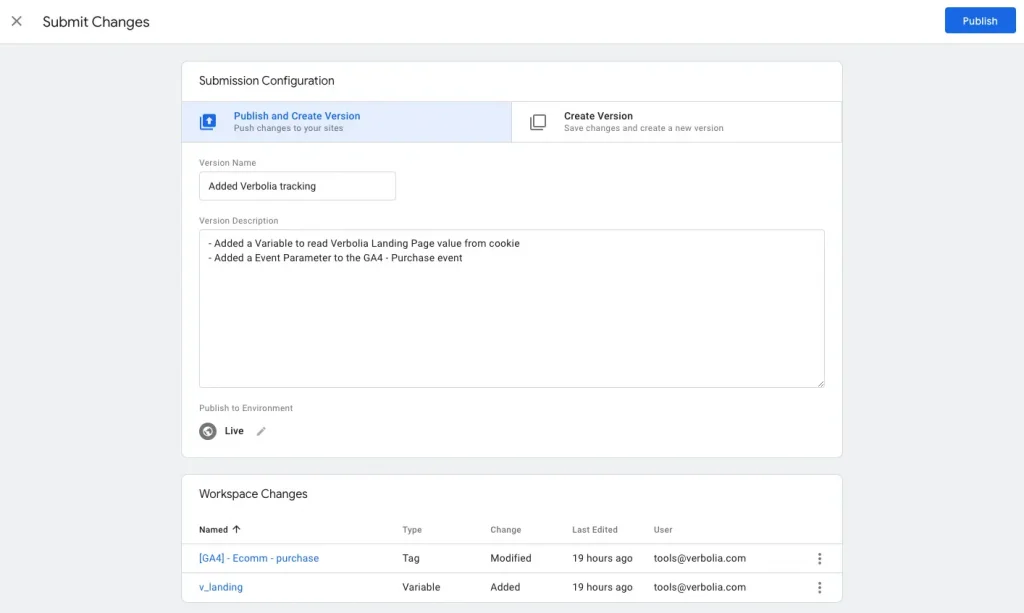
**Implementation as a Javascript gtag call**
A parameter named “v_landing” must be passed within the gtag purchase call, it’s value must be the url of the page that can be found in the “v_landing” cookie, for example:
```
gtag("event", "purchase", {
transaction_id: "T_12345",
value: 25.42,
tax: 4.90,
shipping: 5.99,
currency: "USD",
coupon: "SUMMER_SALE",
v_landing: "/v/kewyord-page",
items: [
{
item_id: "SKU_12345",
item_name: "Stan and Friends Tee",
affiliation: "Google Merchandise Store",
coupon: "SUMMER_FUN",
discount: 2.22,
index: 0,
item_brand: "Google",
item_category: "Apparel",
item_category2: "Adult",
item_category3: "Shirts",
item_category4: "Crew",
item_category5: "Short sleeve",
item_list_id: "related_products",
item_list_name: "Related Products",
item_variant: "green",
location_id: "ChIJIQBpAG2ahYAR_6128GcTUEo",
price: 9.99,
quantity: 1
},
{
item_id: "SKU_12346",
item_name: "Google Grey Women's Tee",
affiliation: "Google Merchandise Store",
coupon: "SUMMER_FUN",
discount: 3.33,
index: 1,
item_brand: "Google",
item_category: "Apparel",
item_category2: "Adult",
item_category3: "Shirts",
item_category4: "Crew",
item_category5: "Short sleeve",
item_list_id: "related_products",
item_list_name: "Related Products",
item_variant: "gray",
location_id: "ChIJIQBpAG2ahYAR_6128GcTUEo",
price: 20.99,
promotion_id: "P_12345",
promotion_name: "Summer Sale",
quantity: 1
}]
});
```
Example of code to read the value of the cookie:
```
function getCookie(cookieName) {
const name = cookieName + "=";
const decodedCookie = decodeURIComponent(document.cookie);
const cookieArray = decodedCookie.split(';');
for (let i = 0; i < cookieArray.length; i++) {
let cookie = cookieArray[i].trim();
if (cookie.indexOf(name) === 0) {
return cookie.substring(name.length, cookie.length);
}
}
return "";
}
// Example usage:
const cookieName = "_ga";
const cookieValue = getCookie(cookieName);
console.log("Value of the cookie: " + cookieValue);
```
#### 4. Custom Dimension definition
In order to have a clean reporting, it is necessary to create a custom dimension in GA4.
For this, go to Admin > Custom Definitions > Custom Dimensions and click on “Create Custom Dimensions”.
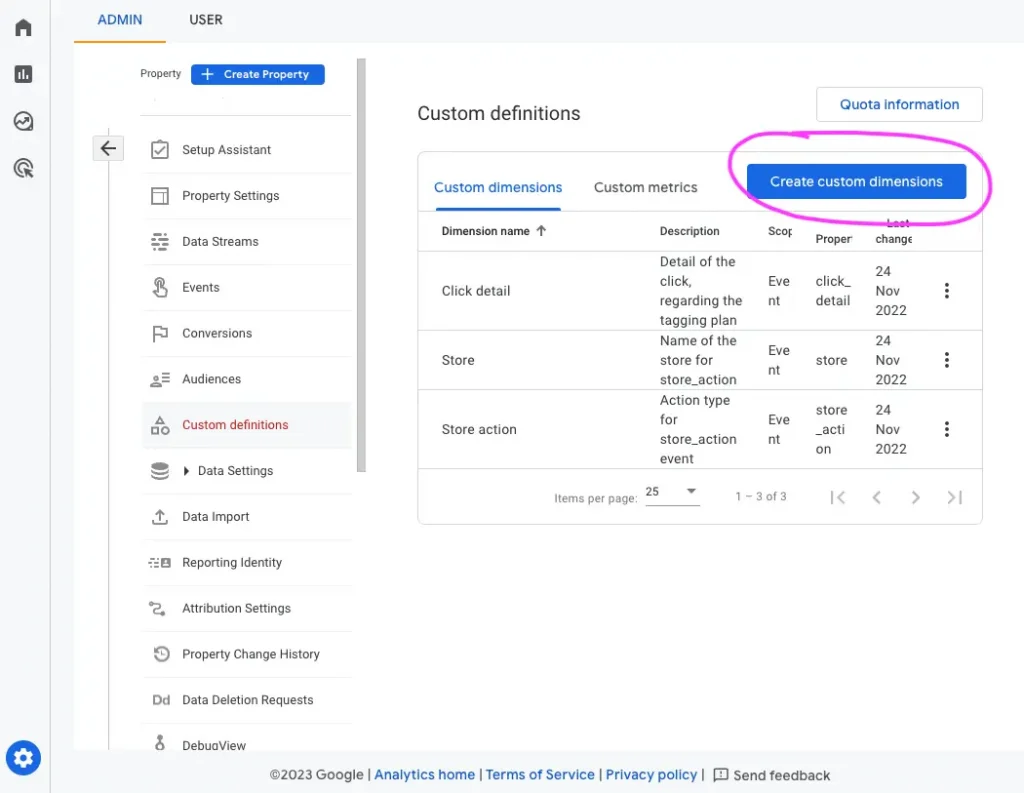
Define the following custom dimension:
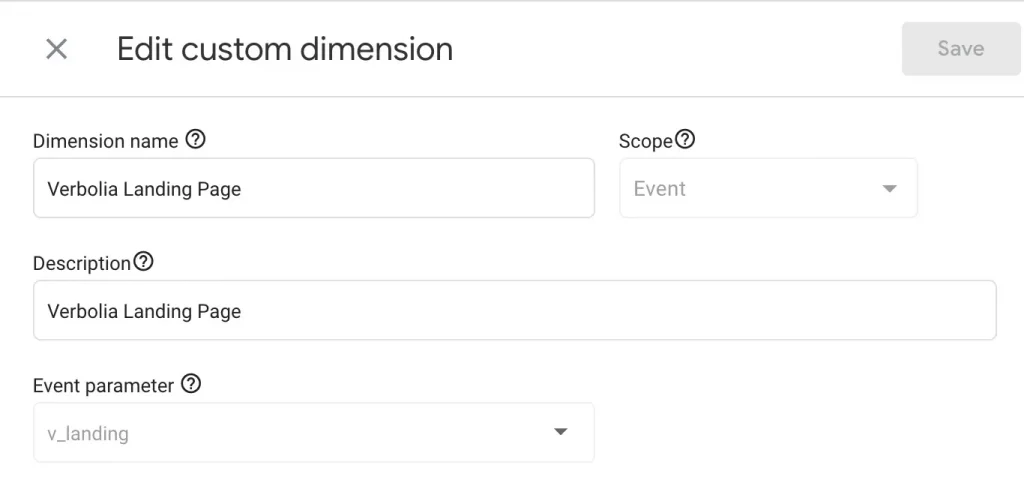
#### 5. Login to GA4 property
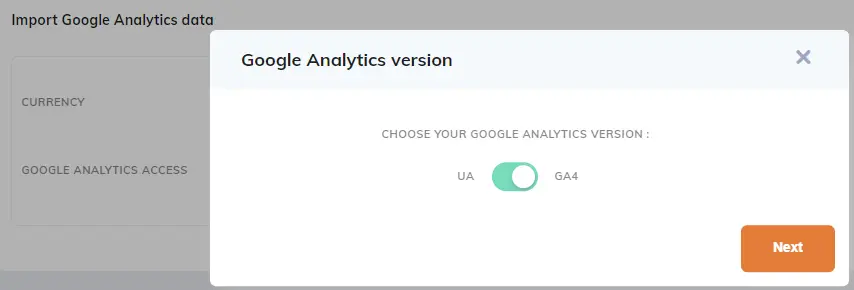
In the Verbolia App, go to Configuration/Settings and login with your Google Analytics account to the correct GA4 property:
- Select: Connect a different account and login with your Google Analytics account
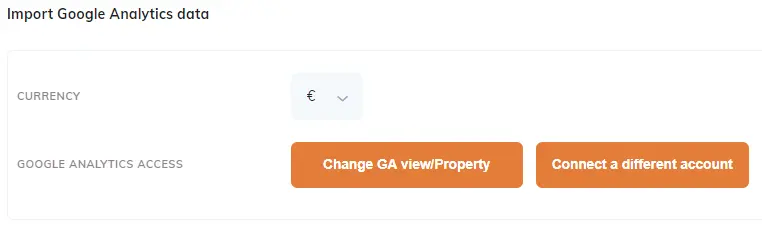
- Change to the correct GA4 property on your account
#### 6. Setup Report in GA4
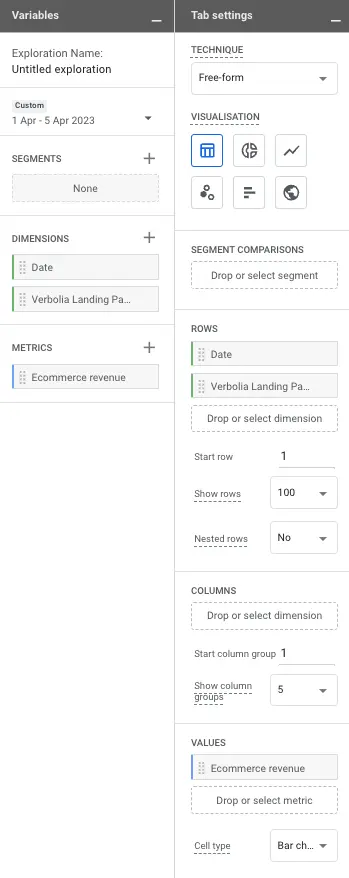
**(basic) Exploration**
Example of a basic Exploration:
**Create Verbolia Revenue Report**
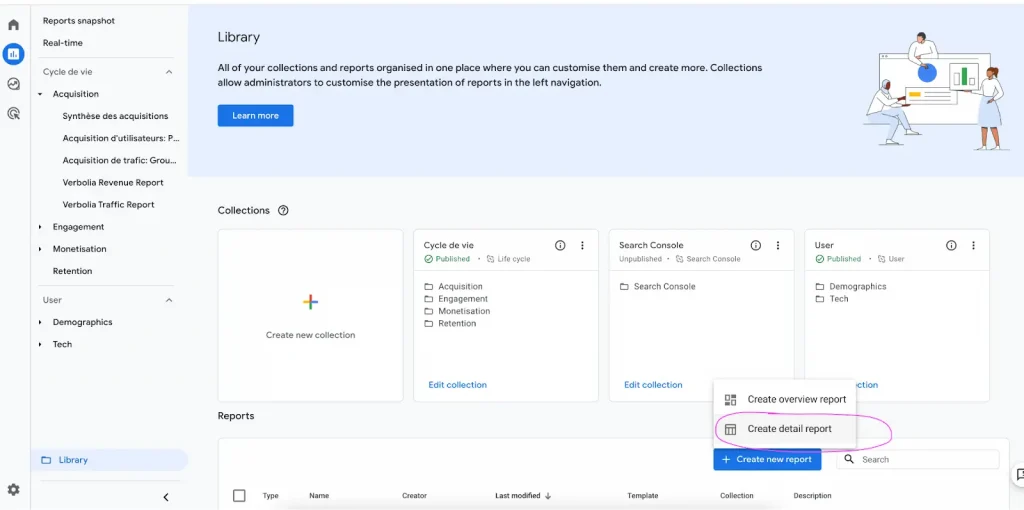
Go to Reports > Library > Create new report > Create detailed report, then choose Blank Report
In the right columns:
- Click on Dimensions, and add “Verbolia Landing Page”
- Click on Metrics and add “Total revenue”
- Click on Add filter, and add a filter on the dimension “Verbolia Landing Page”, and use the Verbolia folder as a filter (/v/ in the example below)
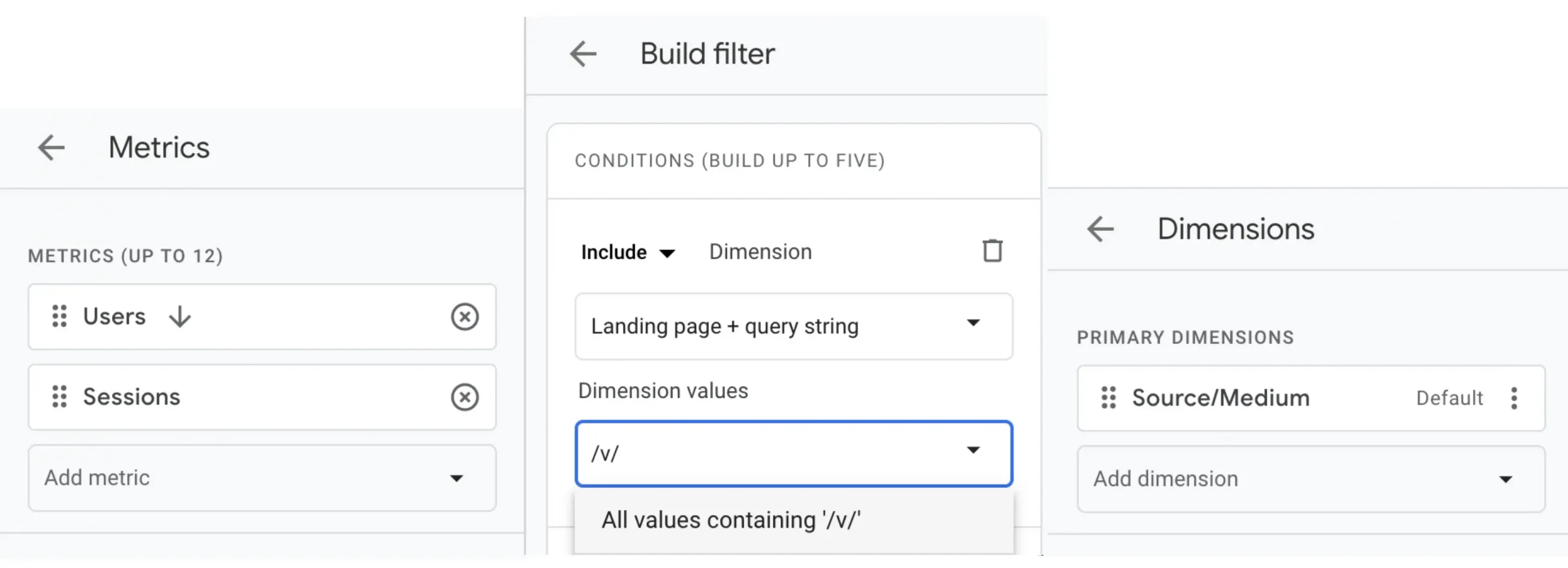
Then Save the report as “Verbolia Traffic Report”.
**Move the reports in the Acquisition Section**
In the Report > Library screen, click on “Edit collection”of the “Life cycle” collection:
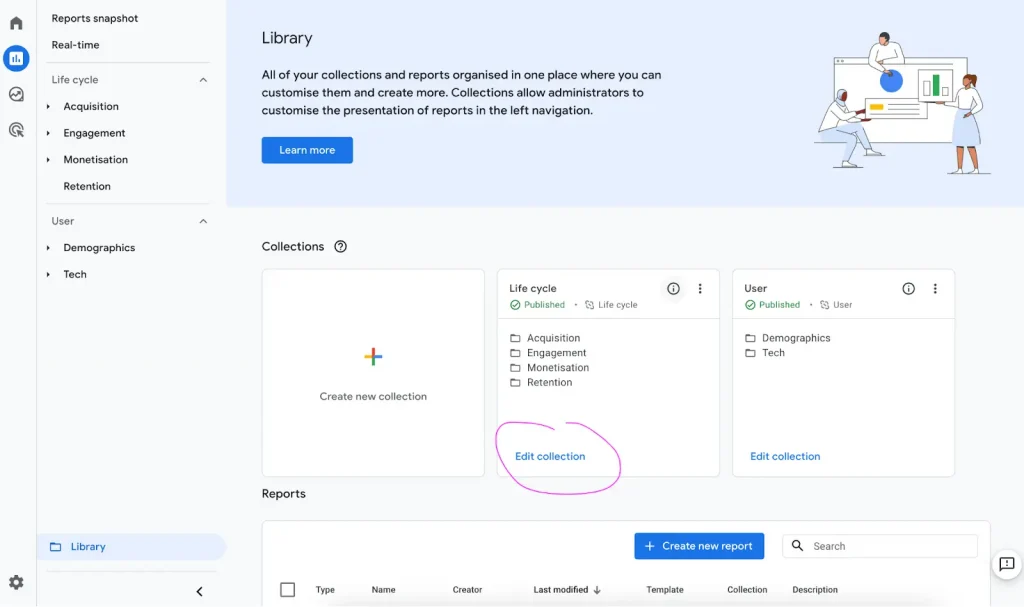
Drag and drop the 2 newly created reports in the “Acquisition” section:
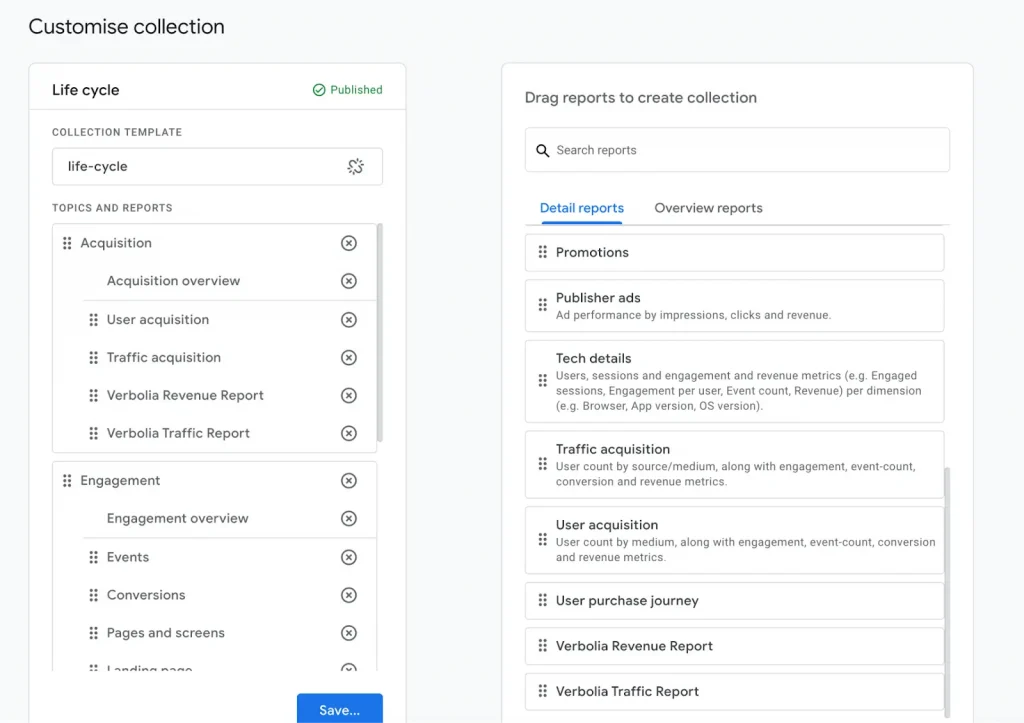
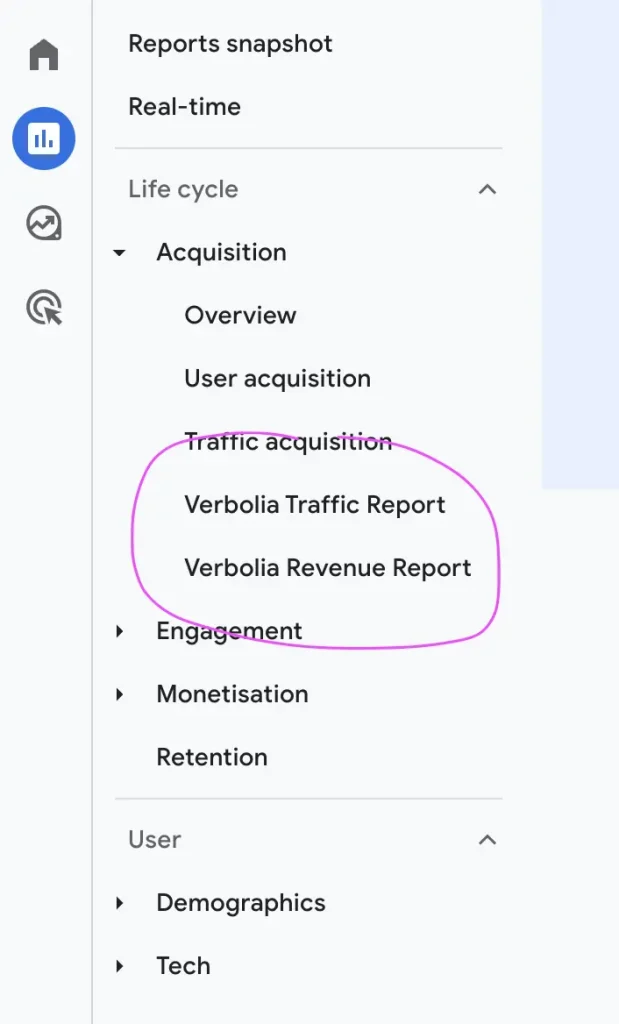
And click Save. The reports are now ready in the Life cycle report section: